How to Choose Pixel Art Size (Resolution): 16px vs 32px vs 64px for Games
The first thing to decide when you draw pixel art, or use pixel art assets, is the size (resolution). Get this wrong and your screen’s visual balance falls apart later, or your art ends up looking blurry. This article introduces the commonly used sizes and tips for scaling.
Commonly Used Sizes
16×16px
This was a common size in games from the Famicom era (the Japanese version of the NES). Each pixel carries a lot of meaning, so you need to express character with very few dots. It suits Items, icons, small characters, and map tiles (floors and walls).
32×32px
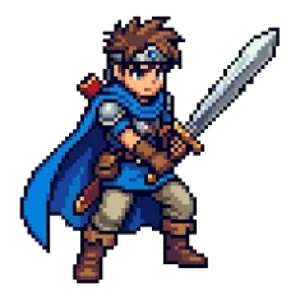
You can add more detail than at 16px, such as facial expressions and differences in clothing. It’s an easy size to work with, well suited to RPG Characters, Monsters, weapons, and Items. If you’re a beginner, we recommend starting with 32px.
64×64px
You can draw fine decorations and in-between frames for animation. It suits bosses, larger Monsters, and characters close to a standing portrait.
128px and Above
This is the size for backgrounds, scene illustrations, and large artwork. You can draw every detail, but the time it takes to draw jumps sharply. Otomusu’s assets for Characters and Items are also made at high resolution, with 128px as the baseline, so they can be enlarged and used as they are.
Work Backward from Your Game’s Screen Size
If you’re using pixel art in a game, decide based on the screen size and the character size.
- If the screen is a low-resolution 320×240, make characters 16–32px.
- If the screen is 640×480 to 1280×720, make characters 32–64px.
- If many characters appear on screen at once, go smaller.
Within the same game, it’s important to keep the size of one pixel consistent across characters, buildings, and Items. If you place a tree drawn with 64px detail next to a 32px character, the difference in coarseness stands out and everything looks mismatched.
Tips for Scaling
When you enlarge and display pixel art, follow these two rules.
- Scale with nearest-neighbor (nearest-neighbor interpolation). With interpolation such as bilinear, the edges between dots get blurred and the art looks smeared. Many image editors and game engines have a setting for choosing the interpolation. In CSS, use
image-rendering: pixelated. - Scale by an integer multiple (2×, 3×, 4×…). With an in-between scale like 1.5×, the dots end up uneven in size.
In a game engine, the basic approach is to set the sprite’s “filter” setting to “Point” or “Nearest” (the name differs depending on the engine).
Turning Photos or Illustrations into Pixel Art
If you want to turn a photo into pixel art, you can use the tool that converts photos to pixel art. You can adjust the dot coarseness (what fraction to reduce the image to) and the number of colors. If you push the coarseness too far, the original photo breaks down, so try starting with about 32–64 cells.
Summary
- When in doubt, start with 32px.
- In games, work backward from the screen size to decide character size.
- Keep the pixel coarseness consistent within the same project.
- Scale using nearest-neighbor at integer multiples.
If you want to place dots yourself, you can use the Pixel Art Editor (supports layers, mirror drawing, and transparent PNG export). You can then animate your finished art with the GIF Maker.
Terms of use for the assets
- Free
- No registration
- Commercial use OK
- Edits OK
- Credit optional
- No usage report needed
See the terms of use for details.
Related articles
- How to Use Pixel Art on Flyers, Posters and Business Cards: A Resolution Guide
- How to Fix White Edges on Transparent PNGs: Background Matching and a Pre-Placement Checklist
- How to Make Pixel Art Icons and Logos That Stand Out on Social Media, Streams and Channels
- Pixel Art Character Design for Beginners: Proportions, Color Count and Silhouette