



How to Add Free BGM to Your YouTube Videos (Beginner's Guide with Free Editing Software)
Just adding background music (BGM) to a YouTube video can dramatically change how easy it is to watch and what kind of atmosphere it has, even when the footage itself is exactly the same. This article walks you through the whole process, from downloading free BGM from Otomusu to adding it to your video and uploading, in a way that even first-timers can follow.
1. Choose and Download a Track
First, find a track that fits the mood of your video. On Otomusu, you can search in the following three ways.
- Search by mood: Pick from buttons such as “Bright,” “Soothing” and “Cool” on the top page or in the sidebar
- Filter in the All Tracks list: On the All Tracks page, you can filter by genre, mood and length, and sort from shortest to longest or longest to shortest
- Search by keyword: Type words like “piano” or “game” into the search box at the top of the screen
Preview any track that catches your eye with the ▶ button. When you find one you like, open its page and press “Download” to save the MP3 file. If the track is shorter than your video, either chain together two or three tracks with a similar mood, or use looping (repeating), which is explained later.
2. Import the BGM into Your Editing Software
CapCut (Smartphone and PC)
- After importing your video, open “Audio” in the bottom menu
- Choose the downloaded MP3 file from “Add audio” or “Extract” (on a smartphone, saving the file in the “Files” app makes it easier to find)
- An audio bar will be added to the timeline, so drag its edge to adjust its length to match your video
DaVinci Resolve (PC)
- Drag the MP3 file into the “Media Pool” to import it
- On the “Edit” or “Cut” page, place it on an audio track in the timeline (such as A2, a track separate from the voice)
- Lower the volume with “Volume” in the Inspector, and drag the small white squares (fade handles) at the edges of the clip to add a fade-in or fade-out
In any software, the basic rule is to put the voice (narration) and the BGM on separate tracks. That way you can adjust their volumes individually later.
3. Adjust the Volume (The Most Important Step)
The most common BGM mistake is “the BGM is so loud that you can’t hear the voice.” Use the following as a guideline.
- Videos with voice: Set the BGM about 10–20 dB quieter than the voice (roughly 20–30% on your software’s volume scale)
- Videos without voice (vlog scenery, work-in-progress videos, etc.): Let the BGM take the lead and make it fairly loud, as long as it doesn’t distort
- Check on both earphones and speakers: Bass is hard to hear on a smartphone speaker, while BGM tends to sound louder on earphones
Using a “ducking” feature, which lowers the BGM only while someone is speaking (such as CapCut’s “Auto ducking” or sidechain in DaVinci Resolve), makes the voice much easier to hear.
4. Use Fades to Start and End Naturally
If the sound cuts off abruptly in the middle of a track, viewers will feel something is off.
- Start: A fade-in of 0.5–1 second
- End: A fade-out of 2–3 seconds
- Scene changes: Fade out the previous track while fading in the next one (a crossfade)
Otomusu tracks are finished so that they end naturally, but if you cut a track partway to fit the length of your video, always add a fade-out.
5. Pre-Upload Checklist
- In the first few seconds, is the BGM getting in the way of the voice or game sounds?
- At track changes, does the sound cut off with a pop?
- Does the BGM stop abruptly at the end of the video?
- Did you write a credit in the description (optional)?
Credit is optional for Otomusu materials, but if you write something like “Music: Otomusu (https://otomusu.com/)”, it’s a great encouragement for the site’s administrator, jeid. You can find more details in How to Write a Credit, with Examples.
Summary
No matter which software you use, adding BGM comes down to four steps: “import it → match the length → lower the volume → add fades.” Just paying attention to volume and fades will take your video’s polish up a notch. The three tracks below are classic picks that are easy to match with almost any kind of video. Give it a try with just one video to start!
Tracks mentioned in this article
Press ▶ to listen, or open a track to download it for free.

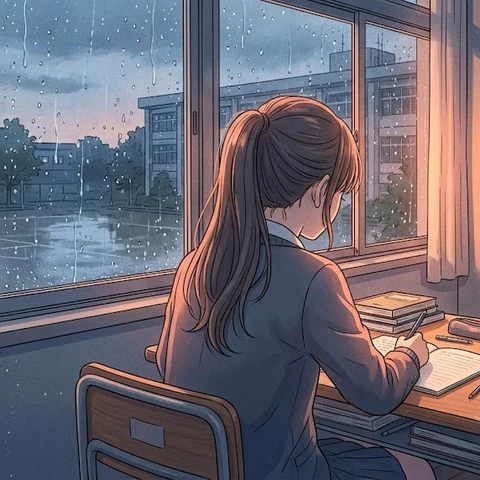
放課後の自習室
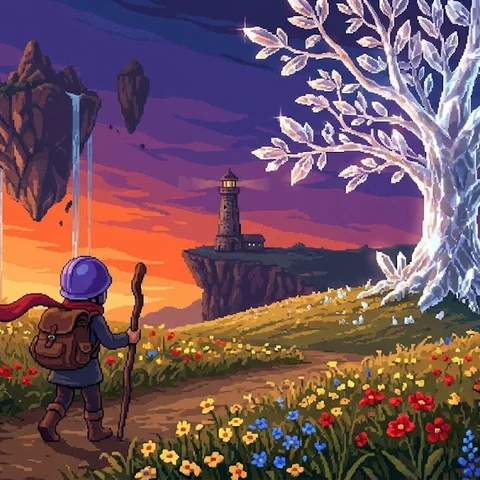
ピクセル勇者の冒険
Terms of use for the assets
- Free
- No registration
- Commercial use OK
- Edits OK
- Credit optional
- No usage report needed
See the terms of use for details.
Related articles
- How to Add Sound Effects to Video: Scene Transitions, Emphasis and On-Screen Text
- How to Find Music and Pixel Art for Seasonal and Holiday Videos: Spring, Summer, Autumn, Winter, Christmas and New Year
- How to Choose Opening BGM for Your Videos: Hook Viewers in the First 5–10 Seconds
- How to Add BGM in Video Editing Software: Audio Track Basics (DaVinci Resolve, Premiere Pro, CapCut)