



How to Choose Opening BGM for Your Videos: Hook Viewers in the First 5–10 Seconds
The first few seconds of a video are when viewers decide whether to keep watching. The BGM that plays here works like a signboard for your video: without a single word, it tells people what genre and mood to expect.
This article walks through the key points for choosing opening BGM, step by step. Even if you’re just getting started with free BGM in your videos, you can try everything here right away.
Opening BGM Has 3 Jobs
The music you play at the start of a video does three main things.
- Sets the mood: The very first sound tells viewers whether this is a bright and cheerful video, a calm explainer, or an exciting adventure
- Becomes your video’s “face”: If you use the same track every time, viewers can recognize your videos by ear alone (“that’s their video!”)
- Shifts the viewer’s mindset: For people arriving from another video, it’s a signal to tune in to the world of your video
Conversely, if you pick a track whose mood doesn’t match your content, viewers will sense that something feels off. Start by describing your video’s genre in a single phrase.
Step 1: Describe the Mood of Your Video in One Phrase
Before you search for a track, describe your video in terms of how you want people to feel while watching it. For example:
- I want to start bright and energetic (gameplay videos, daily-life logs, cooking)
- I want an exciting sense of adventure (travel, game walkthroughs, DIY and crafting)
- I want to come across as calm and trustworthy (explainers, reviews, study videos)
- I want something a little mysterious and stylish (vlogs, portfolio showcases, music-related videos)
Once you have that one phrase, you’ll spend far less time hesitating over tracks. On Otomusu, you can browse by mood or by genre, so try previewing tracks starting with the words closest to your phrase.
Step 2: Think in Terms of “5–10 Seconds”
The portion of a track you use as opening BGM is very short within the video as a whole.
- If you only show a title: about 3–5 seconds
- If you show a title plus a short greeting: about 5–10 seconds
- If you show a short animation or footage: about 10–15 seconds
An opening that runs too long makes viewers want to skip ahead. Instead of playing the whole track, use a section that already sounds great within the first few seconds. Using the beginning of the track is the basic approach, but you can also cut out just the exciting part (see Editing Tips for Fitting BGM to Your Video Length for how to cut).
Step 3: Check How the Track “Starts”
The most important thing in an opening is how the track begins. When previewing, listen closely to just the first 5 seconds.
- Tracks where sound hits right away: They communicate the mood instantly. Well suited to short openings
- Tracks that gradually get louder: They build anticipation. A good fit when you want to reveal the title slowly
- Tracks that start with a quiet intro: They suit calm videos, but 5 seconds may not be enough to convey the mood
For example, a track that begins like a scene of setting off on a long journey suits the opening of an adventure or travel video. To hear the differences, try comparing just the openings of “Great Expedition at Dawn” (an epic, cool mood), the bright “Sparkling Sky Drop,” and the game-style “Adventure of the Pixel Hero.”
Step 4: Make Sure It Doesn’t Clash With Voice or Titles
Openings often have title text or a spoken greeting layered over the music. If the BGM is too busy, the voice becomes hard to hear.
- If a voice will be present, choose a track with a somewhat restrained melody
- Tracks with a high-pitched melody playing constantly tend to overlap with the voice
- Keep the music quieter than the voice, and you can raise it a little after the voice ends
For more on balancing volume against voice, see Tips for Balancing Narration and BGM Volume. A common approach is to make the opening louder, then bring it down naturally before the main content begins.
Step 5: Sync the Visuals and the Sound
Once you’ve dropped your chosen track into the video, line up the visual changes with the music.
- Find the track’s “strong beats” (the spots where it goes boom)
- Time the title’s appearance and the visual cuts to those beats
- At the end, fade out so the music blends naturally into the main audio
You don’t need to match every sound. Even just syncing two moments, “the instant the title appears” and “the moment the first scene changes,” makes your video look much more professional.
Choices to Avoid
- Picking a track only because “it’s trending,” regardless of your video’s mood
- Using a different track every time, which erases the sense of unity across your series
- Layering a track with vocals under an opening that has spoken voice (the lyrics and your voice overlap and become hard to hear)
- Choosing a track with a very long intro, so the opening ends before the exciting part arrives
Pre-Upload Checklist
- Does the mood of your video come across in the first 5 seconds?
- Are the title text and voice holding their own against the music?
- Are you using the same track, or one with the same mood, in every video?
- Have you checked the conditions for using the track (such as whether credit is required) in the Terms of Use?
Summary
Choose opening BGM in this order and you won’t get stuck: decide the mood → decide which 5–10 seconds to use → check how the track starts → balance it with the voice → sync it to the visuals. Start by laying just the first 5 seconds of a track that caught your ear over your video and trying it out. Swapping in a few different tracks until one feels right is the fastest route to the perfect fit.
Tracks mentioned in this article
Press ▶ to listen, or open a track to download it for free.


きらめく空のドロップ
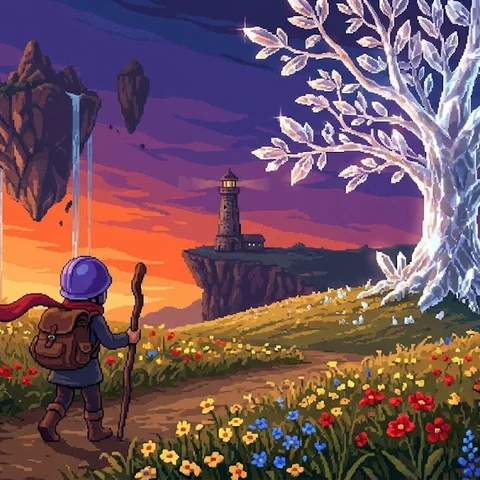
ピクセル勇者の冒険
Terms of use for the assets
- Free
- No registration
- Commercial use OK
- Edits OK
- Credit optional
- No usage report needed
See the terms of use for details.
Related articles
- How to Add Sound Effects to Video: Scene Transitions, Emphasis and On-Screen Text
- How to Find Music and Pixel Art for Seasonal and Holiday Videos: Spring, Summer, Autumn, Winter, Christmas and New Year
- How to Add BGM in Video Editing Software: Audio Track Basics (DaVinci Resolve, Premiere Pro, CapCut)
- How to Edit BGM to Fit Your Video: Cutting, Fading and Looping Basics