
Illustration MakerCombine pixel art assets and place them freely
Otomusu's Combine image assets (backgrounds, characters, monsters, buildings, dishes and more) to , a free tool for making original illustrations. Including shop templates such as cake shops, bakeries and cafes, Shop interior backgrounds, plus furniture, goods, staff and signboards are also provided, and Recreate a shop too. Drag to place freely, and set size, rotation, flipping, stacking order and text. The "Examples" and "Shop templates" is also a good place to start.images are processed only inside your browser; nothing is sent to a server.
0. Make it automatically
If you can't decide, try making one randomly. Press again as many times as you like.
1. Choose a background
Click to choose from "🖼 Backgrounds" and "🏠 Shop backgrounds" in the asset list below. You can also use a single color or transparent.
2. Choose and place assets
Click an asset to place it on the canvas (you can also drag it anywhere). Background assets become the background when clicked.
🔤 Text templates ( kinds)
Click to place text on the canvas. There are also shop phrases such as "Welcome!". After placing, you can change the text, color and size.
3. Arrange & save
Settings for placed items
Layers (upper ones in front)
Selected:
Drag the title bar to move the window and use the bottom-right corner to resize it. You can also move, resize (white circle) and rotate (yellow circle) assets here.
Examples & shop templates
Combine assets and you can make illustrations like these.Click the image to view it larger. Press "Make from this" to edit it as it is. For shop templates, swap the furniture and goods to make it your own shop.
How to use
- In "1. Choose a background", pick a single color or an image. For an image, click the asset you want from the "🖼 Backgrounds" or "🏠 Shop backgrounds" tabs in the asset list.
- Click an asset such as a character, furniture, goods or staff and it's placed on the floor (you can also drag it in).
- Drag placed items to move them anywhere. On the frame that appears when selected, white circle to resize、yellow circle to rotate can be changed.
- Keep "Overlap lower items in front" checked and nearer items overlap naturally. Use duplicate (⧉) to line up the same shelf or product many times.
- Stacking order, horizontal flip, duplicate and text are also available. Move precisely with the arrow keys (Ctrl+Z to undo).
- You can also make one automatically with "🎲 Randomize all" or "🏪 Make a shop automatically".
- When it's done, press "Save as PNG". To show it on social media or email, post from "Share".
Examples of illustrations you can make
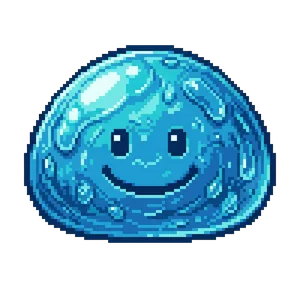
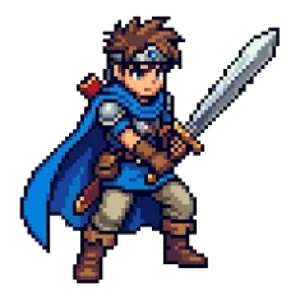
- An RPG-style scene with a hero and a slime on a grassland background.
- Recreate shop interiors such as cake shops, cafes and ramen shops. Concept images of shops for games and novels.
- A Halloween illustration with Halloween decorations and ghosts placed on a night town background.
- Festival stalls, video thumbnails, game introduction images and social media header images.
FAQ
- What assets can I use?
- You can use Otomusu's image assets (characters, monsters, backgrounds, tile maps, buildings, dishes, seasonal events and more) as well as shop assets (12 kinds of shop interior backgrounds such as cake shops, bakeries and cafes, plus furniture & fixtures, goods, staff & customers, and signs & storefronts). You can also load your own images and place them together.
- How do I choose a background?
- Just click the asset you want from the "🖼 Backgrounds" or "🏠 Shop backgrounds" tabs. You can choose "Stretch to fill the screen" or "Tile". A single color or transparent background is also possible.
- Where are assets placed?
- With "Place on the floor" checked, assets are placed standing at the floor position near the bottom of the screen. Shop furniture, goods and staff are placed at a fitting size. Uncheck it and assets are placed at the center. Drag them anywhere.
- How does front-to-back overlapping work?
- With "Overlap lower items in front" checked, items lower on the screen (nearer) overlap in front, giving depth. For fine control, uncheck it and reorder with "Forward" and "Backward".
- Can I use shop templates?
- Press "Make from this" on an example or shop template at the bottom of the page to edit it as is. Swap the furniture and goods to make it your own shop.
- Can I freely use the illustrations I make?
- Illustrations made with Otomusu assets can be used in videos, games, social media and more within the Terms of Use (commercial use OK, credit optional). You may not sell the assets themselves.
- Are images sent to a server?
- No. Everything is processed only inside your browser.
More free tools
- Pixel Art Editor: use pixel art you drew yourself as an asset.
- Image editorTools: cut out photos and images and flip them, make kaleidoscopes and more.
- Color variation maker: make recolors of assets first, then use them here.
- Map Chip Maker: make town and indoor maps.
- GIF Maker: animate your illustration into a GIF.
- Pixel art image assets: browse all assets.